Google Business Profile: how to set up, verify and manage your listing
How to set up and verify your Google Business Profile: verification timelines, a video script, owner and manager roles, and what to do if it fails.

Google Business Profile is the current name of the service formerly known as Google My Business. You create or claim it at business.google.com, but until Google verifies it, you can't edit your details or reply to reviews.
The verification review can take up to five business days, and a postcard with a code usually arrives within 14 days. Below we go through the whole journey from zero to a verified profile: what to decide first, how to set the profile up, what to film for the video, who to give access to and what to do when verification fails. Everything here is based on Google's Help Centre and is accurate as of October 2026.
Before you start: three decisions that save you weeks

Before you create anything, check whether your business already exists on Google Maps and decide which Google account will own the profile. A duplicate profile, or one sitting on an employee's personal account, is much harder to fix later than the few minutes this preparation takes.
Is your business already on Google Maps?
Type your business name and town into Maps. If a profile is there and nobody manages it, you can claim it. If someone else manages it, say a previous tenant or a former agency, send a request for access. The current owner has 3 days to reply. After that you may see the option to claim the profile, but Google warns this doesn't always happen. For service-area businesses, the handover goes through Google support.
Don't create a second profile. Google allows one profile per business location. If you also change the name after the takeover, it depends on how big the change is. A small tweak counts as a rebrand. With a completely new name, Google wants the old profile marked as closed and a new one created.
Which Google account should create the profile
A profile is owned by a specific Google account. You don't need a Gmail address for that, a Google account on your existing email is enough. We recommend that the owner is you as the business owner, or a company account, not the personal account of an employee or an agency. Colleagues and your agency get access later, and you'll find how that works in the section on managing the profile below.
To manage the profile, you then sign in at business.google.com with the same account you used to create or claim it.
A business with an address, or a service area
Restaurants, cafés, guesthouses and hotels welcome guests at an address, so you need a profile with an address. A service area with a hidden address is for businesses that travel to their customers, for example a catering company without its own premises. The area shouldn't stretch beyond roughly two hours' drive.
If you serve guests on site and also offer delivery or catering, you can show both an address and a service area. A virtual office or a PO box isn't enough for a profile. The details are in Google's guidelines.
How to set up your Google Business Profile step by step
You can set up the profile at business.google.com in one evening if you have your exact name, address, phone number and website at hand. The key thing is that your details match what Google will see during verification, above all the name on your sign.
If you're opening a bistro in three weeks and Google offers you video verification, don't start until a permanent sign with your name is up outside and the place is fitted out. The video needs both. Leave yourself some slack for verification, you'll find the timelines below.
- Sign in at business.google.com with the account that will own the profile.
- Search for your business by name and town. If Google finds it, carry on by claiming it or requesting access (see above). If not, add a new business.
- Enter the name exactly as it appears on your sign.
- Pick a primary category based on what your business mainly earns from, and add only the secondary ones that really fit. We've written a separate article on how categories and other details help in local search and in AI answers.
- Enter the exact address where you welcome guests, or your service area.
- Add your phone number and website. Watch out: if your business number goes to an automated voice menu, you won't receive the code from phone verification.
- Continue to verification. Google will offer you a method (see below).
Google changes the interface from time to time, so the order of the screens may differ. What you do in each step stays the same.
Business name: what doesn't belong in it
The name should be the one people know in the real world. Leave out slogans, store codes, trademark symbols, names written all in capitals, opening hours, phone numbers, web addresses, descriptions of services or products, and location details like "near ..." or "inside ...". According to Google's guidelines, extra details in the name can get your profile suspended.
One thing is easy to miss. The name on your profile has to match the name on your permanent sign, otherwise video verification won't go through. An example with a made-up business: "Linden Tree Bistro" is right, "Linden Tree Bistro burgers Lisbon open till 10 pm" is wrong.
Guesthouse, hotel and restaurant in one building
According to Google, a restaurant, café or bar that belongs to a hotel gets its own profile, separate from the accommodation. If you've taken over a guesthouse with a ground-floor café that's also open to people walking in from the street, we recommend doing the same: one profile for the rooms, a second for the café.
Guesthouses and hotels don't list opening hours. A restaurant lists the hours when people can sit down and eat on site. If there are none, it lists pickup hours, then drive-through and only then delivery. A seasonal business keeps normal hours during the season and is marked as temporarily closed outside it. Don't delete it.
How does Google business verification work and how long does it take?
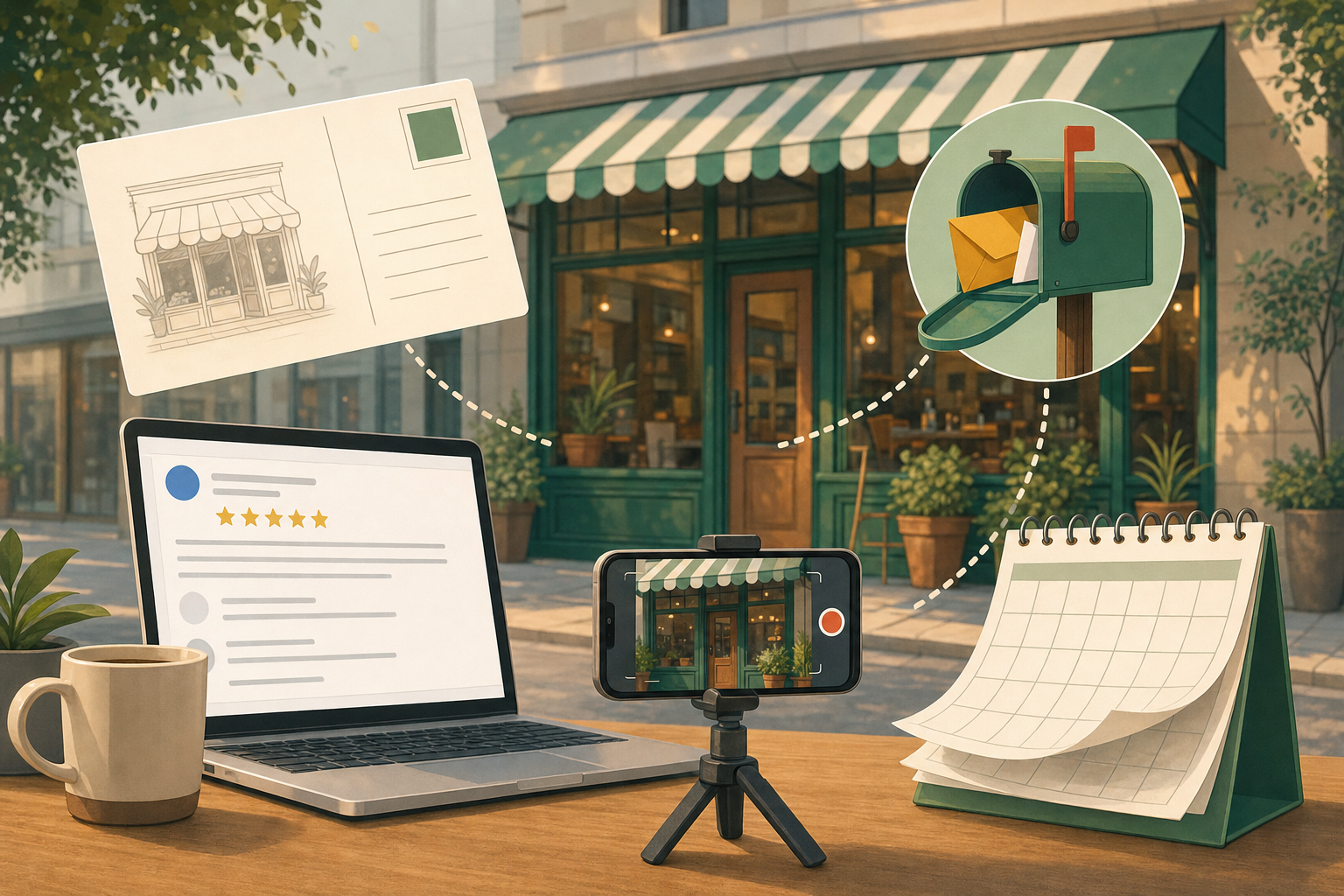
Google assigns your verification method based on your type of business, region, public information and opening hours. You can't pick a method Google doesn't offer you. If it offers more than one, you can try another. Once you submit, the review can take up to five business days, and the postcard with the code usually arrives within 14 days.
Which method you'll get
Google offers these methods:
- phone or text: the code comes by call or message, an automated voice menu won't take it,
- email,
- live video call: only during business hours in your area and on a suitable device,
- postcard: not available to every business,
- video: Google recommends it if your business is eligible.
Some businesses have to verify in more than one way. Verification can also be instant, for example with a website verified in Search Console or with bulk verification. Google doesn't give any timeline for that.
All the timelines in one place
Five business days and 14 days aren't two versions of the same deadline. Five business days is the upper limit for the review after you submit verification, a video for example. 14 days is the usual delivery time for the postcard.
| Situation | Timeline | What it means for you | Source |
|---|---|---|---|
| Review after submitting verification (e.g. a video) | up to 5 business days, rarely longer | Don't change profile details during the review | verification, video |
| Postcard with the code arriving | usually within 14 days | Don't request a new code earlier, it cancels the previous one | verification |
| Postcard code valid (5 digits) | 30 days | Enter the code as soon as it arrives | verification |
| Current owner replying to an access request | 3 days | After that you may get the option to claim the profile, not always | ownership request |
| New owner or manager | first 7 days | Can't delete the profile, remove others or transfer primary ownership | roles, users |
| Documents for a suspension appeal | within 60 minutes of opening the form | Have the documents ready beforehand | suspension |
For the review and the postcard, these are upper limits, not guarantees. The table is accurate as of October 2026.
What not to do while you wait
While you wait for the postcard or the review result, don't change your name, address or category. The code might stop working. Don't keep requesting a new code either. Each new one cancels the previous one and the whole process can drag on. Sit tight, even if it's annoying.
Video verification: a one-take script
The video has to be at least 30 seconds long, unedited, continuous and recorded live on your phone through the profile. Pre-recorded footage won't do. Google wants to see where you are, the name on your permanent signage and areas only staff can access. The details are on Google's page about video verification.
Here's what a take for a restaurant or café can look like:
- Start outside: the street, the building number, the neighbouring businesses. Roughly the first ten seconds (that's our recommendation, not a Google rule).
- Without stopping, walk to the entrance: the sign, the lettering on the wall or window with the name exactly as on your profile.
- Go inside and keep going to the counter without stopping.
- Show the staff-only areas: the till or POS, the kitchen, the storeroom.
- End the take, submit it and wait for the review result.
For a guesthouse, show the back office behind reception or a storeroom guests never see instead of the kitchen. Google only talks about staff areas in general, reception is our example.
Don't film sensitive information such as account numbers, tax details or documents, or other people's faces. We recommend filming before opening or outside busy times so there are no guests in the shot. Walk the route once without recording first.
From our experience: film the place so its surroundings are visible too, ideally the neighbouring businesses, which make it easy for Google to confirm you're really there. The take itself, from the street to the name on your sign, wall or window, is simpler than it sounds, just don't forget the part only staff see. And while you're filming anyway, why not add a separate short video of the walk from the street to your bar or reception to your profile? Google allows profile videos of up to 30 seconds. It helps guests who are looking for you in town for the first time.
No sign with your name yet: guesthouses and seasonal businesses
For video verification, Google wants to see your business name on something permanent, a sign, wall or window, and it has to match the profile. For a business without permanent signage, it recommends running it as a service-area business, and that means a hidden address.
If you've taken over a guesthouse and the new sign is still being made, that leaves you with an awkward trade-off. Guests need the address to find you, and a hidden address won't give it to them. The most practical option is to put up a permanent sign with the exact name from your profile before you verify.
What to do if verification fails or Google suspends your profile?
A rejected verification isn't the end. Google tells you which requirements the video didn't meet, and you can send a new one. A suspended profile is sorted out with an appeal and documents, not by creating a new profile.
| Problem | Usual cause | What to do | What to avoid |
|---|---|---|---|
| Video verification failed | The video missed a requirement, Google tells you which | Open the issues view in your profile and upload a new video with everything from the first one plus what was missing | Sending the same video again |
| Postcard didn't arrive or the code doesn't work | Delivery usually takes up to 14 days, changing the name, address or category breaks the code | Wait 14 days, enter the code within 30 days | Requesting a new code too early, changing details |
| You can't reply to reviews | The profile isn't verified yet | Finish verification | Looking for a workaround |
| Someone else manages the profile | A previous tenant or an agency claimed it | Request access, the owner has 3 days | Creating a duplicate profile |
| The profile is suspended | Something breaks the guidelines, for example extra details in the name or an ineligible address | Appeal with documents (see below) | Creating a new profile during the appeal |
Sources: verification, video verification, replying to reviews, ownership request and profile suspension.
How to appeal a suspension
- Check your profile against Google's rules, especially the name and address, and fix anything that's off.
- Get documents ready that show the same name and address: business registration, a licence or permit, a tax certificate or a utility bill.
- In Google's appeals tool, select the profile and submit the appeal.
- Upload the documents within 60 minutes of opening the form.
- Keep an eye on the appeal status. Google doesn't say how long the review takes, and if the appeal is rejected, there can be a further review.
You'll see the status right in the appeals tool.
Managing the profile: owner, manager and access for a colleague or agency
A profile has one primary owner, plus other owners and managers. A manager can do almost everything, including replying to reviews, but can't add or remove people and can't delete the profile.
| Task | Owner | Manager |
|---|---|---|
| Edit details, add photos and posts | yes | yes |
| Reply to reviews and questions, see performance stats | yes | yes |
| Add and remove users, change their roles | yes | no |
| Delete the profile | yes | no |
The primary owner can't remove themselves until they transfer primary ownership to another owner or a manager. We recommend a simple setup: you as the business owner are the primary owner, your agency and colleagues are managers.
How to add a colleague or agency without giving away ownership
It's quick, and Google describes it on its page about adding and removing users:
- Open your profile at business.google.com.
- In the profile settings, find the section about people and access.
- Add the person's email and choose a role, owner or manager.
- Send the invitation. The person can accept it straight away.
Everyone needs their own Google account. You can't add Google Groups. Menu item names may differ depending on the interface language.
When an employee leaves or you stop working with an agency
The owner removes the user in the same section of the settings. Once removed, the person can no longer change anything, but their old replies and posts stay on the profile. On top of that, a new owner or manager can't delete the profile, remove others or transfer primary ownership for the first 7 days.
Make it a habit to check who has access every time an employee leaves and whenever a contract with an agency ends. It takes a few minutes.
After verification: first reviews and replies
Only a verified profile lets you reply to reviews and edit your details. In the first few days, it pays to focus on three things: opening hours including public holidays, up-to-date photos, and replies to the reviews that piled up in the meantime.
You'll find the full profile setup in our article on a Business Profile audit you can do in one afternoon. For your first replies, our review reply templates will help. If you want more reviews coming in, read how to get more Google reviews without breaking Google's rules.
You can connect your verified profile to Reputo through your Google account. Reputo then tracks new reviews, suggests a reply in your business's tone and, once you approve it, publishes it on your profile. So you don't have to write replies from scratch. Older reviews that were left without a reply can be handled too. You trigger them manually, because they use up your monthly review allowance, and this way the budget isn't spent on old reviews at the expense of new ones. If you want to reply to all the old ones at once, arrange it with our support team. Guesthouses and hotels on the PRO plan or higher can also connect their Booking.com reviews and reply to them.
Try Reputo free for one location.
FAQ
How do I appeal a Google Business Profile suspension?
Don't create a new profile, submit an appeal. First check your name and address against Google's rules, then get documents ready that show the same name and address, such as a business registration, a licence or a utility bill. Submit the appeal in Google's appeals tool and upload the documents within 60 minutes of opening the form. Google doesn't say how long the review takes.
What's the difference between an owner and a manager on Google Business Profile?
A manager can do almost everything an owner can: edit details, add photos and posts, and reply to reviews. But a manager can't add or remove users and can't delete the profile. So for an agency or a colleague, the manager role is usually enough and ownership stays with you. We recommend that the business owner is the primary owner.
What should I do if Google Business Profile video verification fails?
When Google rejects the video, it tells you which requirements it didn't meet. Open the issues view in your profile and upload a new video that includes everything from the first one plus whatever was missing. The video has to be unedited, recorded live on your phone and at least 30 seconds long. Don't send the same video a second time, it won't help.
Does a hotel or guesthouse restaurant need its own Google Business Profile?
Under Google's rules, a restaurant, café or bar that's part of a hotel has its own profile, separate from the accommodation. The accommodation profile doesn't list opening hours, while the restaurant lists its hours for eating on site. For a guesthouse with a café that's open to the public, we recommend the same approach, meaning two separate profiles.
How do I verify a guesthouse or seasonal business without a sign?
For video verification, Google requires your business name on something permanent, such as a sign, wall or window, matching the name on your profile. For a business without permanent signage, it recommends a service-area business with a hidden address, which makes it harder for guests to find you. The more practical option is to put up a permanent sign with the exact name before you verify.